
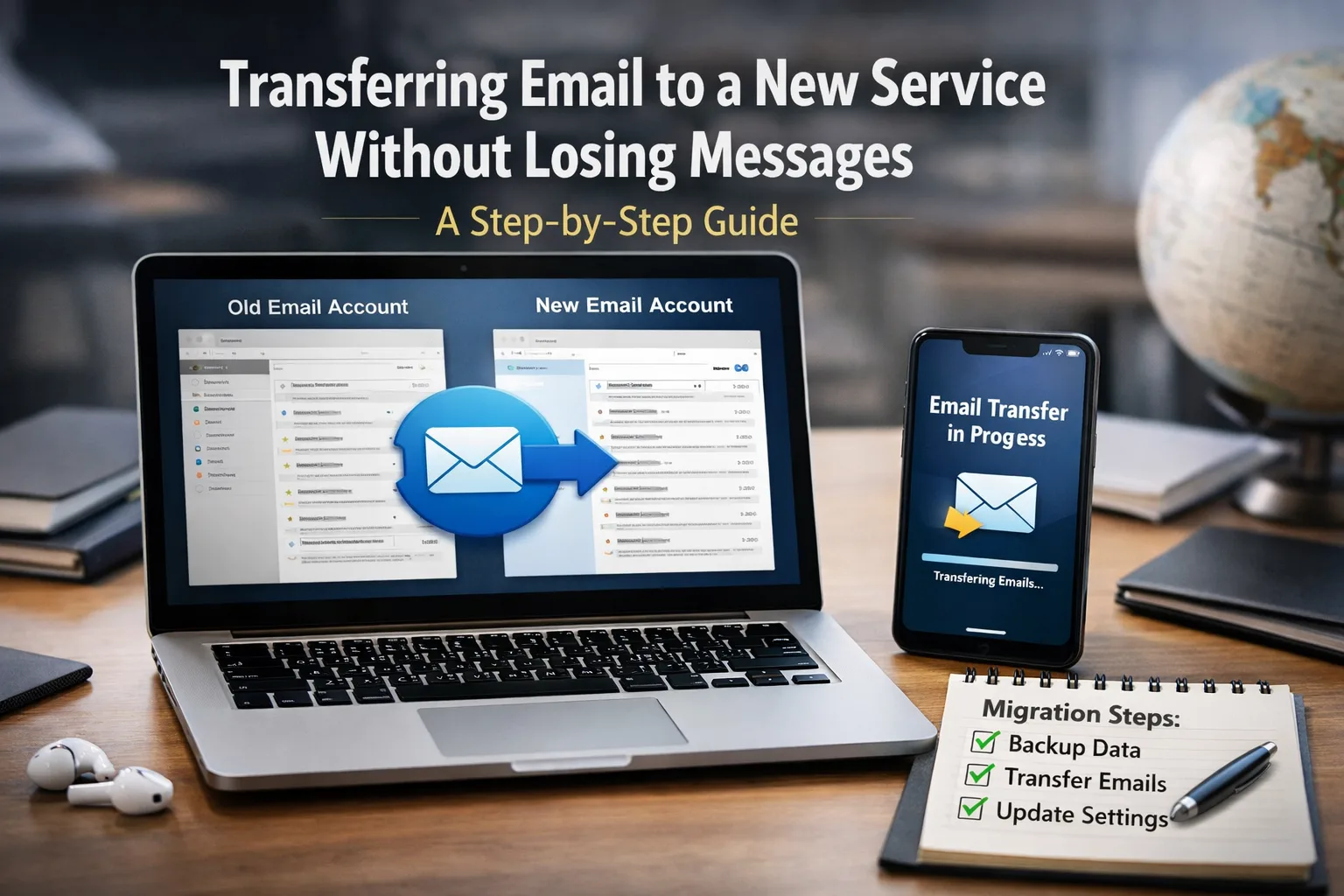
Transferring your email to a new service can seem like a daunting task, often accompanied by worries about losing important emails or contacts during the transition. However, with a clear set of instructions, you can successfully carry out this process without any losses and retain all vital information. This guide will walk you through each step, ensuring a smooth transition to your new email service.
How to Protect Your Email from Phishing: Practical Tips Objective and Expected OutcomeThe primary aim of this process is to move all your emails and contacts to a new service without any data loss.
Objective and Expected Outcome
The primary aim of this process is to move all your emails and contacts to a new service without any data loss. By following the steps outlined in this guide, you should be able to use the new service seamlessly, ensuring your information remains secure and accessible.
Spam Emails: How Much Business is Lost When Your Emails Don't Reach Clients?
Before You Begin

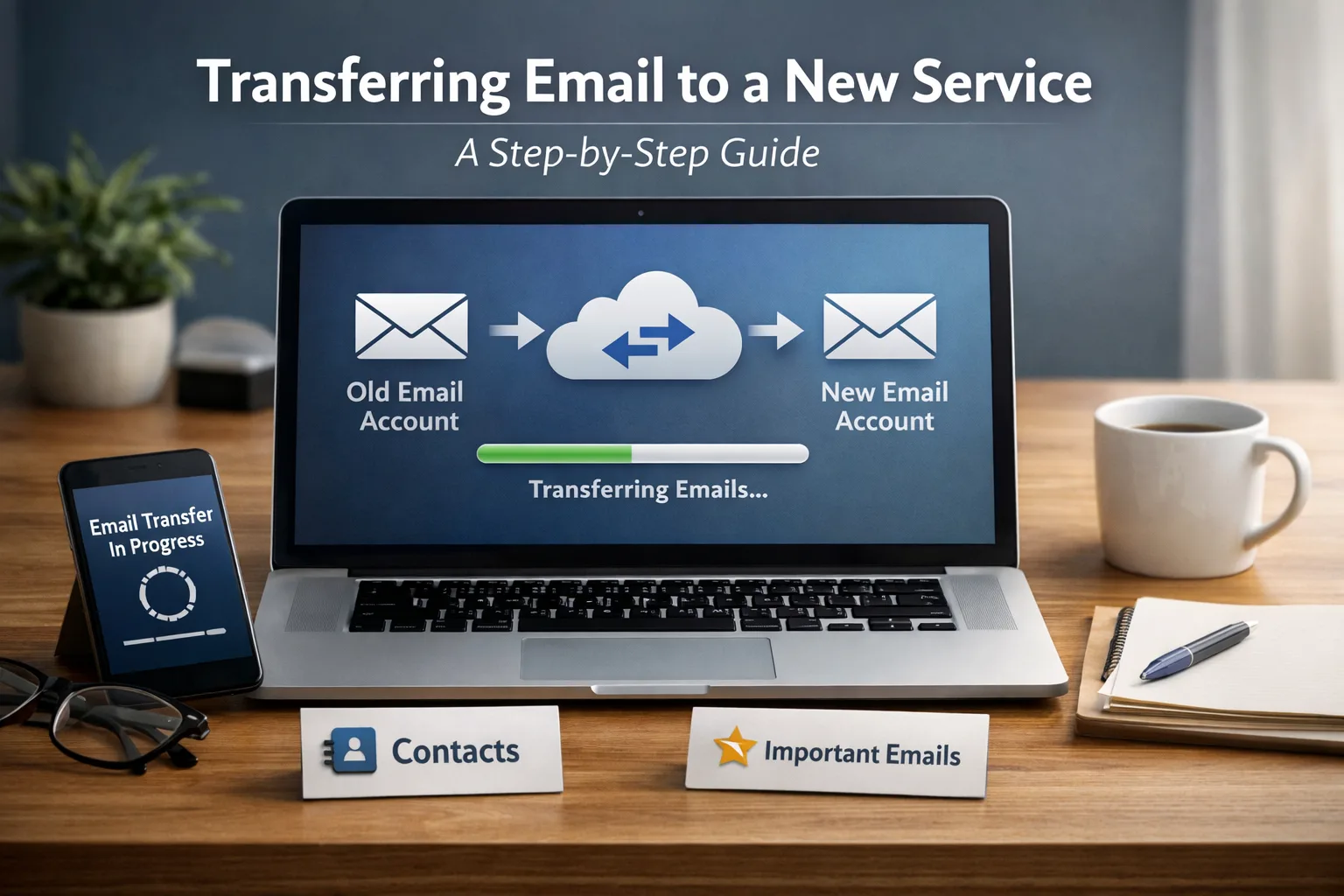
Before starting the transfer, take the following preparatory steps:
How to Protect Your Email from Phishing: Practical Tips
- Create a backup of all your emails and contacts. This can typically be done through the export function of your email client, generating a file that contains all your important data.
- Ensure you have access to the new email service. Confirm that your new account is activated and ready for use.
- Keep records of the settings for both the old and new services (IMAP/POP3 servers, SMTP settings, etc.) for later configuration.
Step-by-Step Action Plan
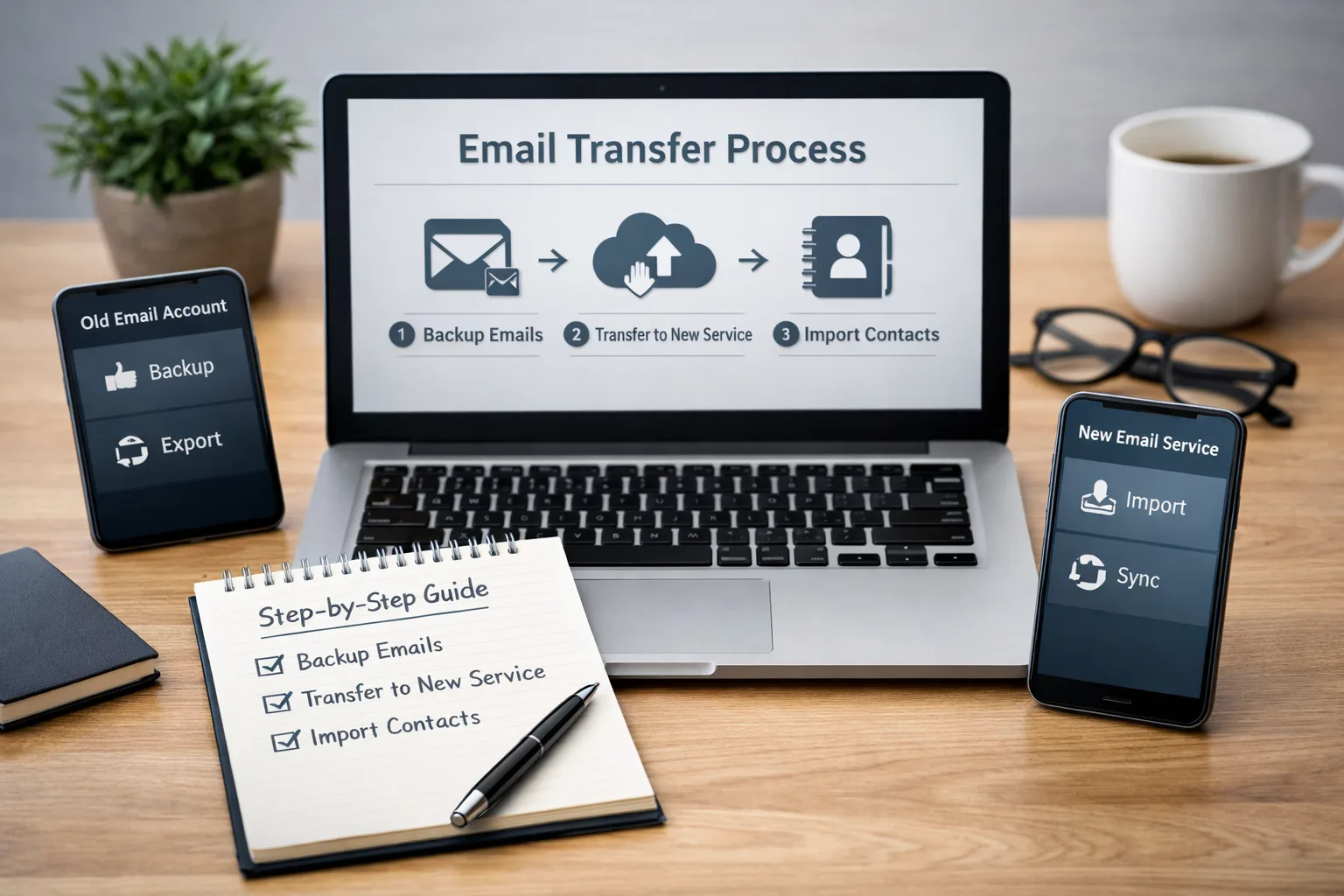
Step 1: Backup Your Data
Before transferring, it is crucial to back up all your emails. This can be accomplished using the export feature in your old email client, which usually results in a .pst or .mbox file containing all your important emails. This backup will serve as your safety net during the transition.
Step 2: Set Up the New Service
After backing up, configure your new email service. Make sure you have entered all connection details correctly, including server names and ports. It is essential to double-check all settings to avoid access issues with your email on the new platform.
Step 3: Transfer Emails
Using the import function in your new email client, transfer all previously saved emails. Select the backup file you created earlier and follow the on-screen instructions. This process will allow you to quickly restore all your emails on the new platform without hassle.
Step 4: Transfer Contacts
Similarly, transfer your contacts using the import feature. This is typically done with a .csv or .vcf file containing all your contact information. Ensure that all contacts have been successfully transferred by verifying their presence in the new service.
Step 5: Configure DNS Settings
On the day of the switch, update your domain's DNS records. This will enable your new email settings to take effect. Be cautious not to lose any emails during this process; it is advisable to verify the DNS settings multiple times before the final transition to ensure everything is correct.
Step 6: Verify the New Service Functionality
After completing all steps, thoroughly test your new account. Send a few test emails to the new address and check their delivery and functionality. This will ensure everything is functioning correctly before finalizing the transition.
Step 7: Final Adjustments
Once testing is successful, configure filters and categories in your new account according to your preferences. You can create folders for organizing emails and set up filters to automate your email management, making it easier to handle incoming messages.
How to Track Progress
It is important to monitor each step of the process closely. Keep a log of actions taken and mark completed stages. This will help you understand where you are in the process and whether everything is proceeding as planned. Keeping records can also assist if problems arise later.
What to Do If Progress Stops
If you encounter issues during the transfer, consider these troubleshooting steps:
- Check your internet connection settings. The problem may lie with an unstable connection that disrupts the transfer process.
- Try importing files again. Sometimes the process may be interrupted due to technical issues, and a second attempt may succeed.
- Contact the support team of the new email service for assistance. They may provide helpful advice and solutions tailored to your specific issue.
Common Mistakes During the Process
A few common mistakes to avoid include:
- Failing to back up data before starting the process, which could lead to loss of important information if something goes wrong.
- Incorrectly configuring DNS records, which may prevent you from receiving emails on the new service after the switch.
- Not verifying the accuracy of imports after completion. Always ensure that all data has been transferred correctly to avoid complications later on.
Conclusion
Transferring email to a new service is not a complicated task if you follow a clear guide. Adhere to the outlined steps and carefully check each phase to avoid data loss and ensure smooth operation of your email. With the right approach, you can transition to a new service seamlessly and continue using your emails without any issues. Embrace this change confidently, knowing that your important data is secure and accessible in your new email environment.
When to involve security or IT support
Security support becomes important when suspicious signals repeat, affect delivery, or touch accounts, domains, sites, or customer trust.
- spoofing, phishing, spam spikes, or login alerts keep recurring
- mail delivery, domain reputation, or site availability is affected
- logs show unknown devices, unexpected forwarding rules, or suspicious DNS changes
- the issue may involve customer data, credentials, payments, or production systems
If credentials, customer data, or production infrastructure may be exposed, escalate immediately and preserve logs before changing evidence.